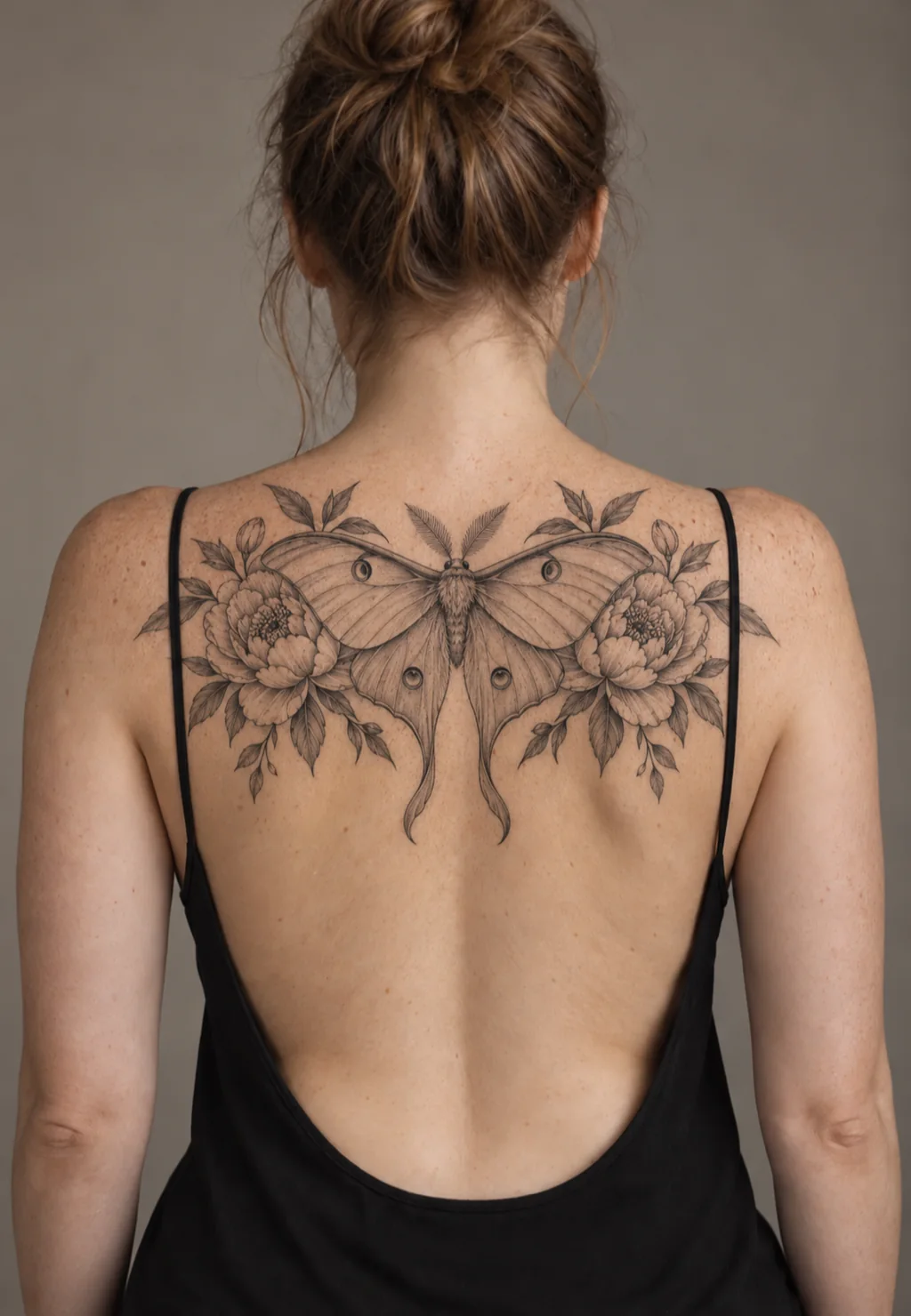
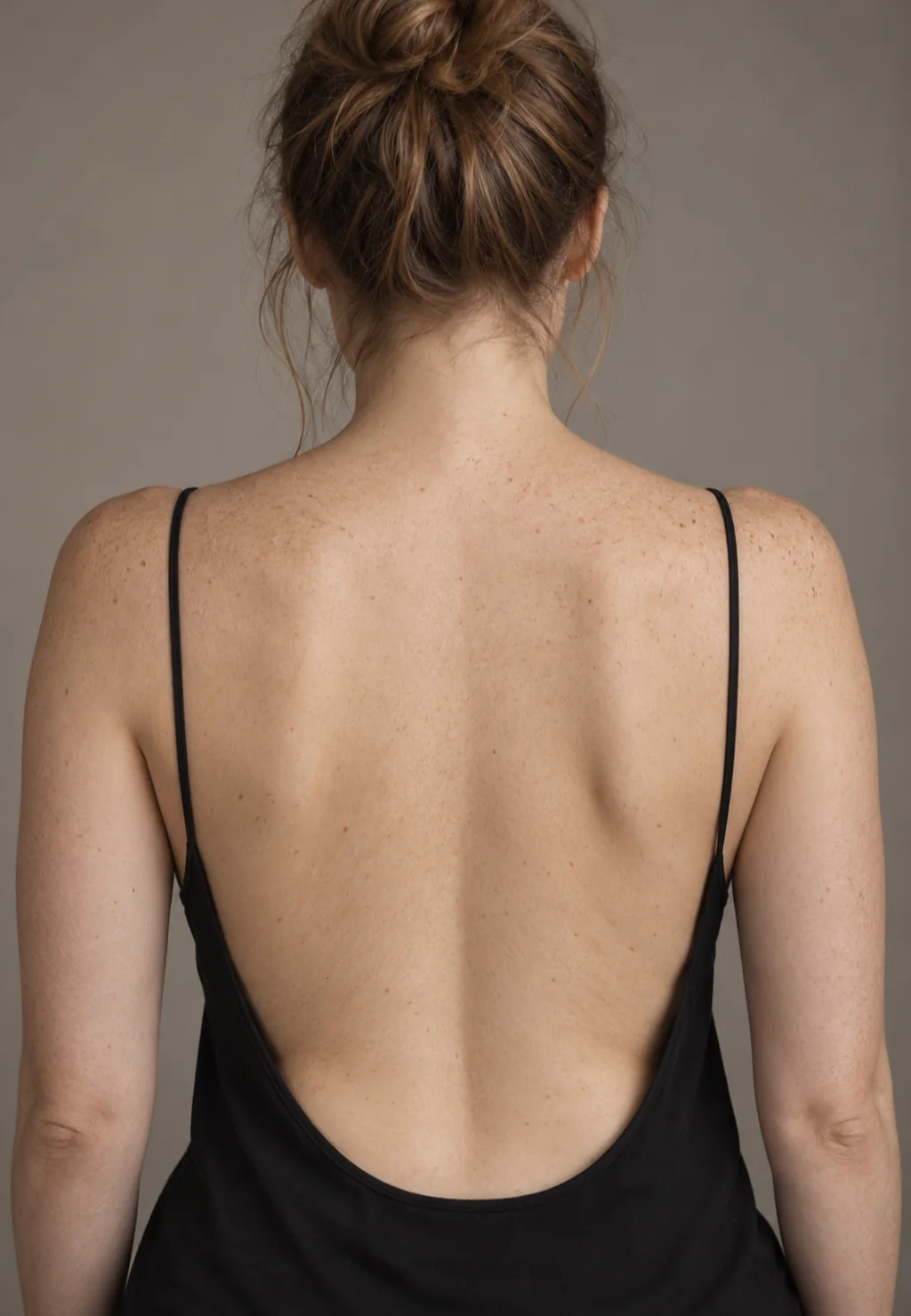
Virtual Tattoo Try On

See your design on your own body before you book the session.

AfterBefore
↔
BeforeAfter
Tattoo Try-On

Free Tattoo Try On for Real Body Photos

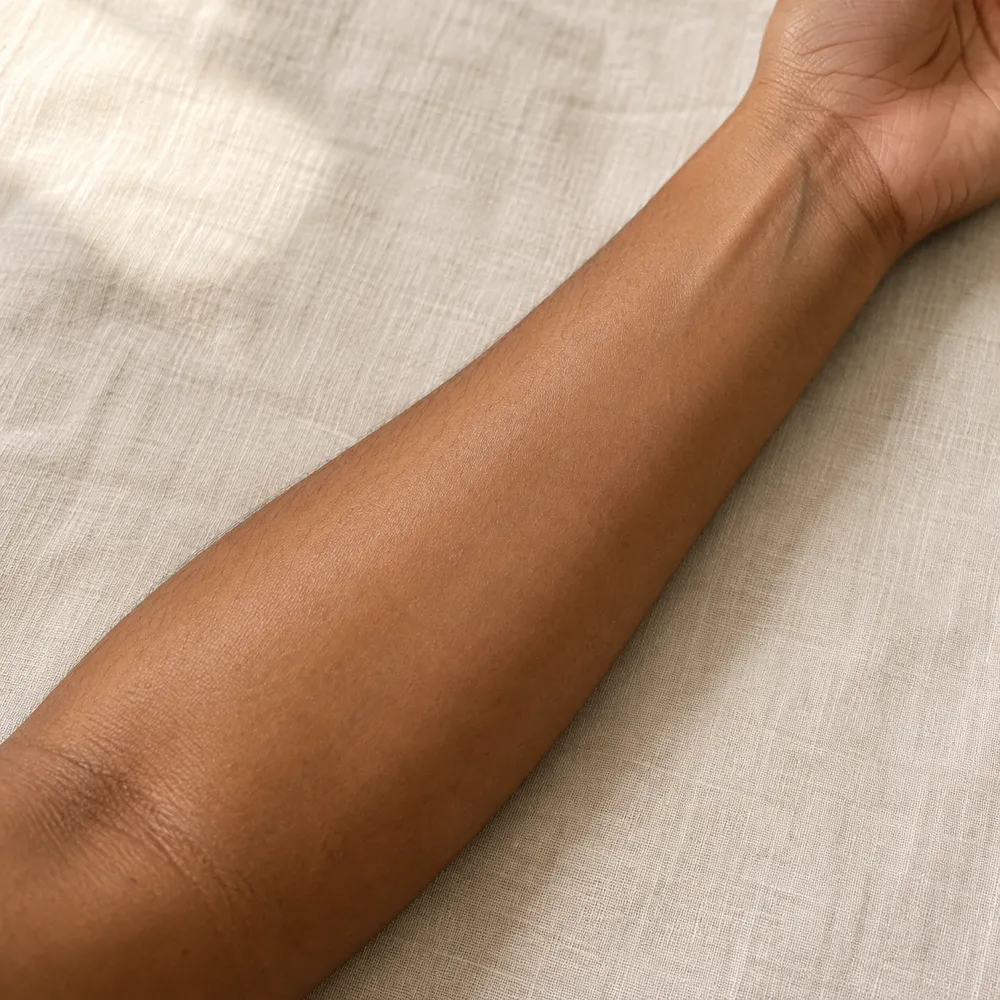
Wondering how a design will sit on your forearm or collarbone? This tattoo try on places the artwork on a photo of your body, or on one of 14 sample body photos, so you can judge size and angle before you commit. Upload your own artwork or pick a saved piece from My Ink. Classic mode is free and runs in your browser, while AI mode renders a separate preview for a listed credit cost.

Try Now
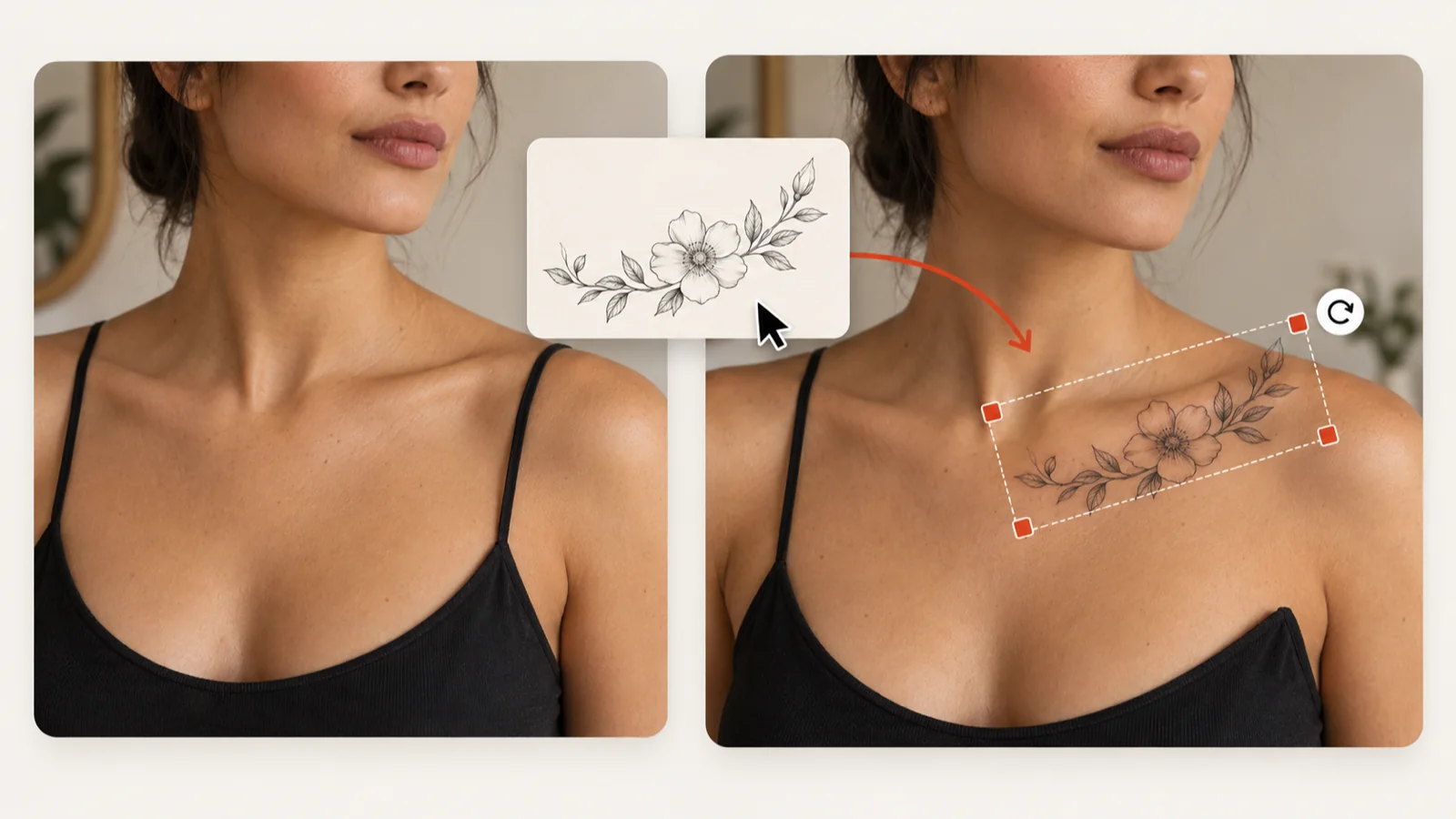
Tattoo try on: a floral design card dragged onto a collarbone photo with selection handles

Test One Design on Several Placements with a Tattoo Simulator

A fine-line moth reads very differently on a forearm than on a shoulder blade, ribs or ankle. Load the design once, then swap the body photo to see where its shape feels balanced. Classic mode strips the background from your artwork so only the linework lands on skin, and you can drag it, change its scale and turn it to follow the curve of the limb. Repeat the tattoo try on for every spot you are considering before saving a composite. Treat each version as a sketch of intent: your artist still fits the final size and flow to your anatomy.
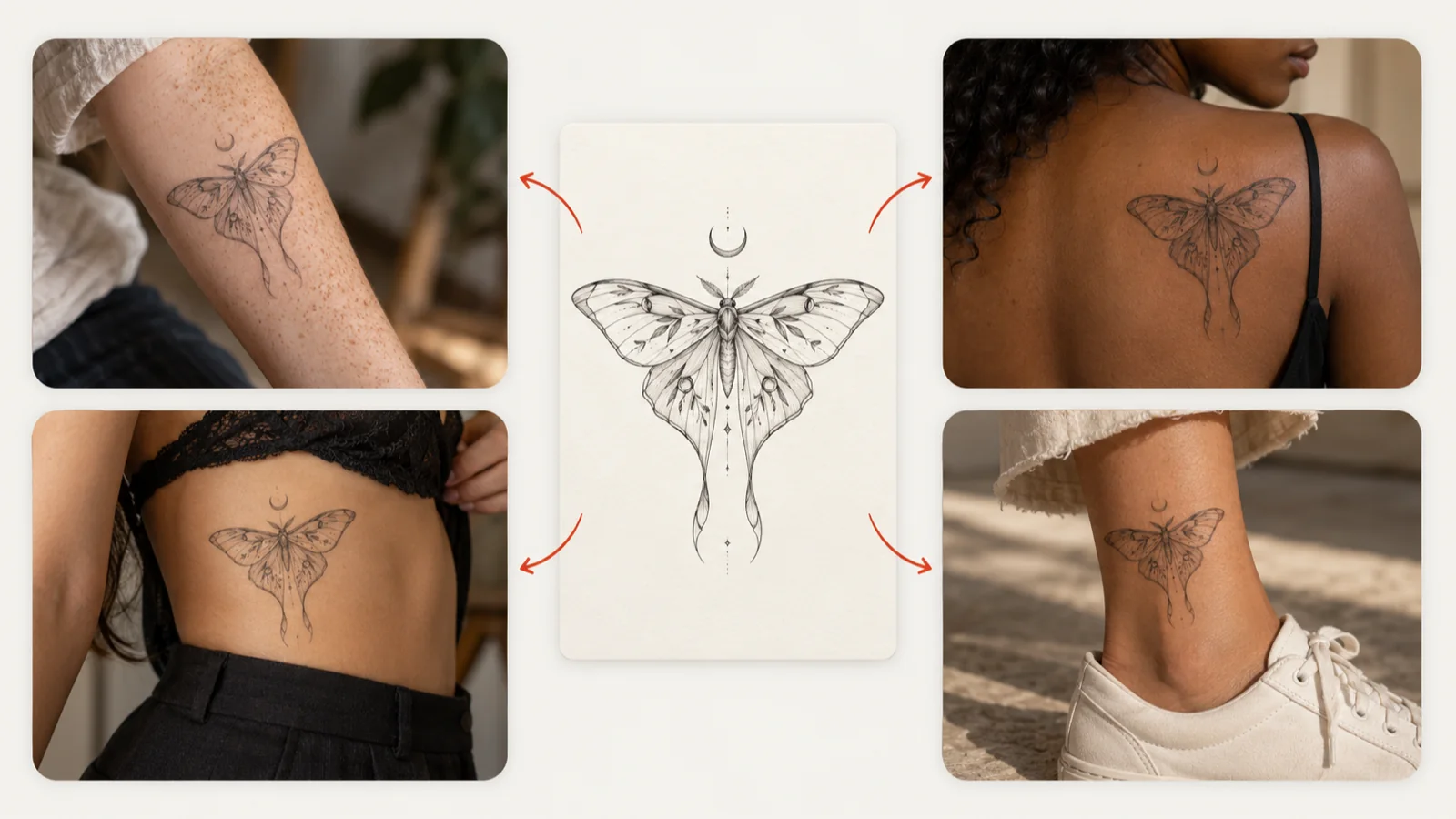
One fine-line moth design previewed on a forearm, shoulder blade, ribs and ankle

Show Your Artist Exactly Where the Piece Should Go

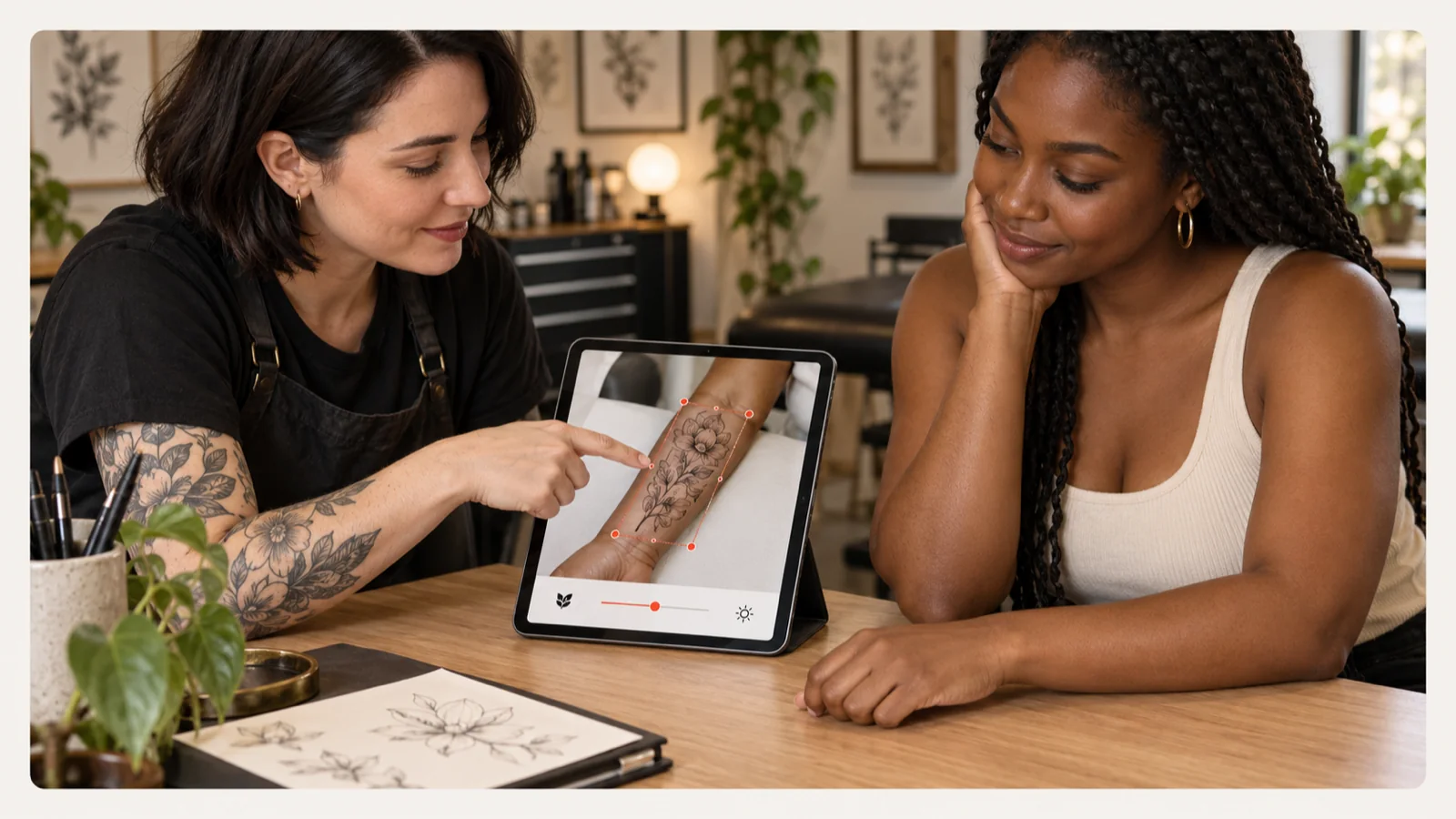
Words like "small" or "along the arm" mean different things to different people. A tattoo try on preview removes that guesswork, because your artist sees the subject, the rough size and the exact area you have in mind. Settle the position in Classic mode, or switch to AI mode for a generated interpretation of the placement; the model and its 10-credit cost are displayed before you submit. Download the image and bring the source artwork as well, so the consultation can move straight to practical questions about scale, flow and detail.

Tattoo artist and client reviewing a floral placement preview on a tablet during a consultation

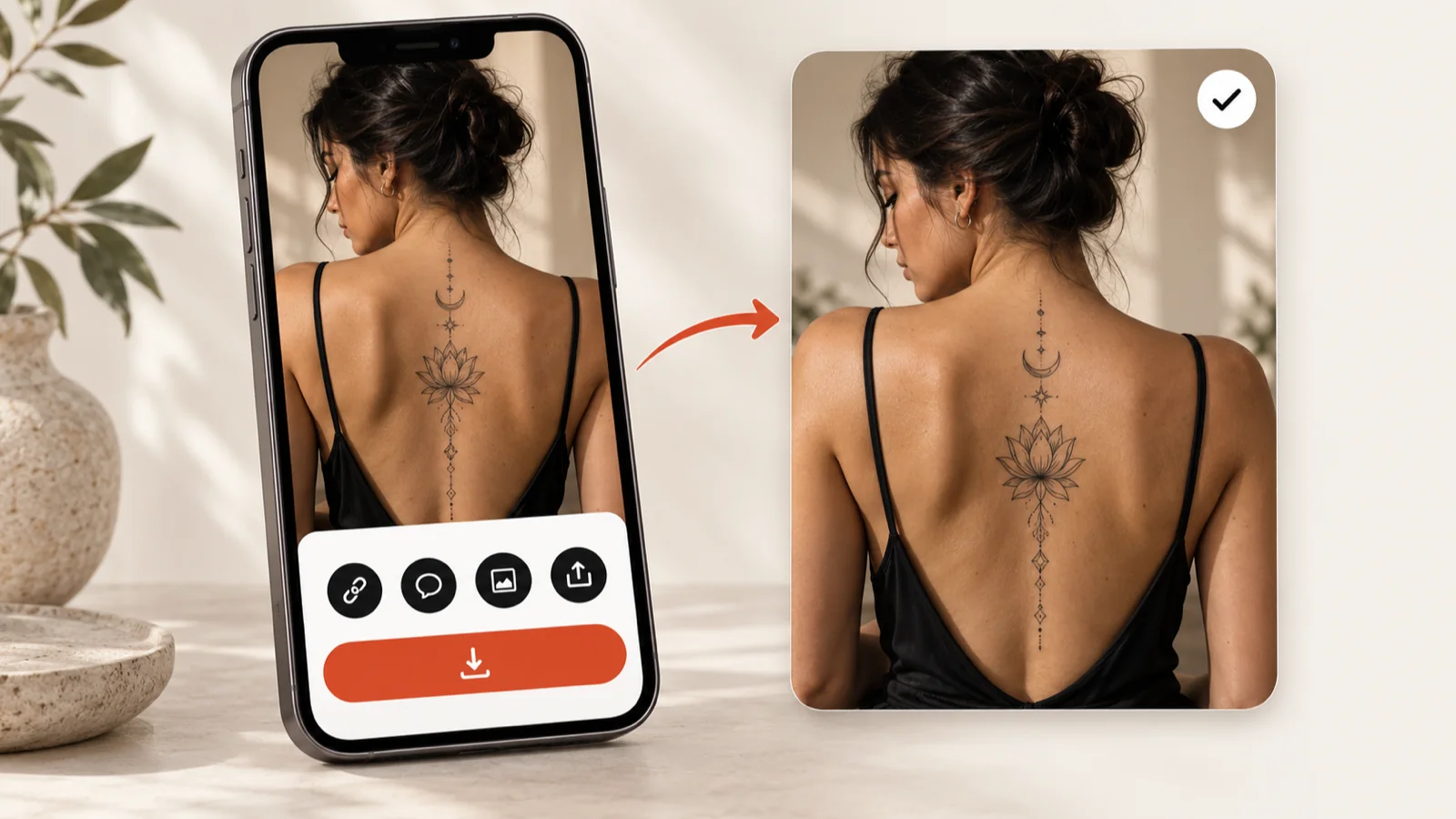
Download or Share Your Virtual Tattoo Try On

Once the placement looks right, export the composite as an image and send it to a friend, a partner or the studio. Results saved to My Ink also get a public link. That share page shows the finished preview only; your body photo is not displayed there as a separate file. Use designs you own or are allowed to use, and check the full image before posting it anywhere.

Phone showing a spine tattoo preview on an open back with share and download buttons

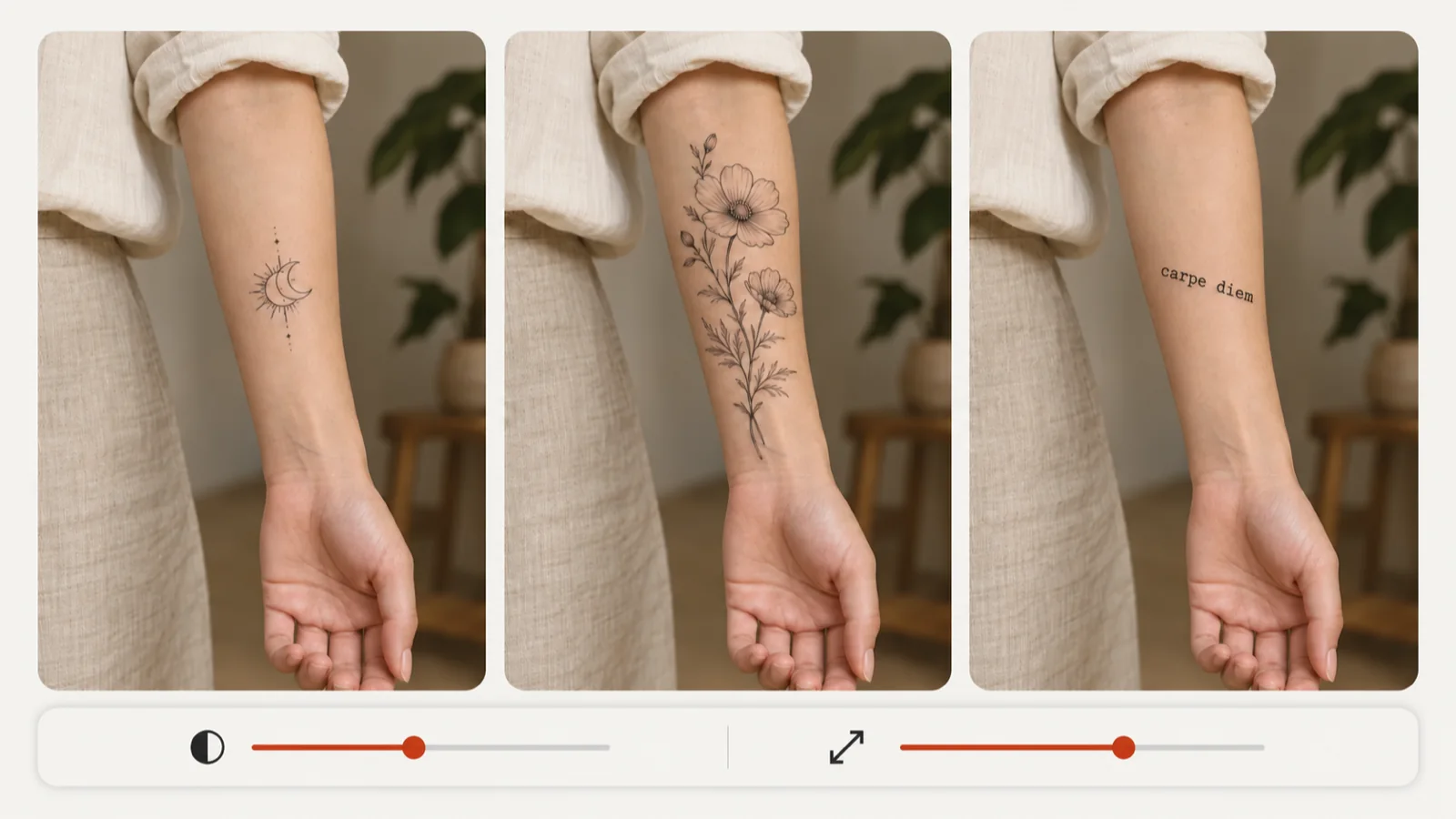
Compare Symbols, Florals and Lettering on the Same Arm

Keep one body photo loaded and cycle through your candidates: a compact symbol, a fuller floral, a single line of script. Seeing them on identical skin and lighting makes it easier to judge which composition uses the space well and which one feels crowded. Lettering made in the font tool can go through the same tattoo try on, so a phrase is weighed next to an image rather than on its own. Save the composites you like and lay them side by side when you narrow down a shortlist with your artist.

Same forearm shown with a small symbol, a larger floral and carpe diem lettering, with size controls

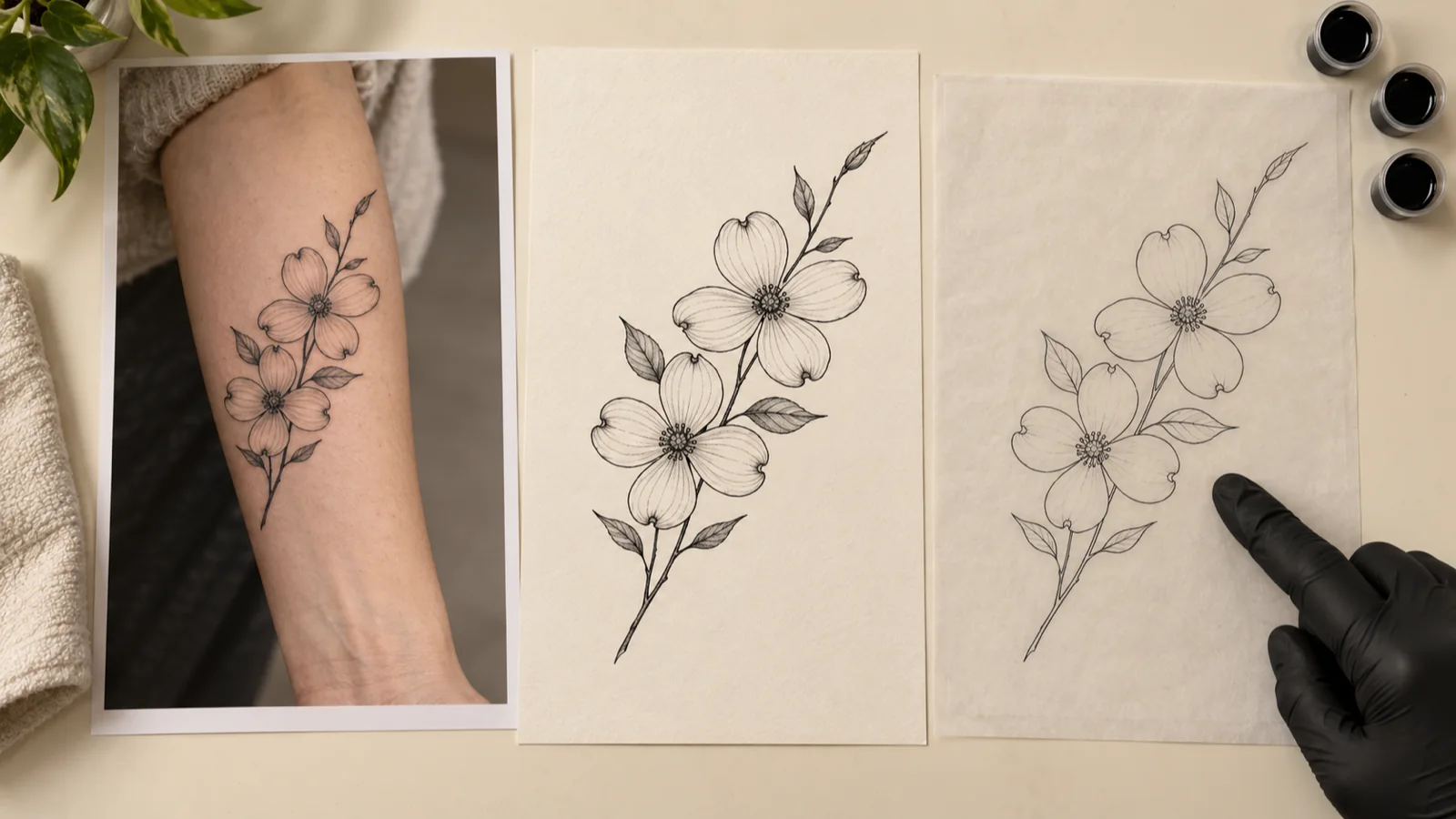
From Placement Composite to Stencil Conversation

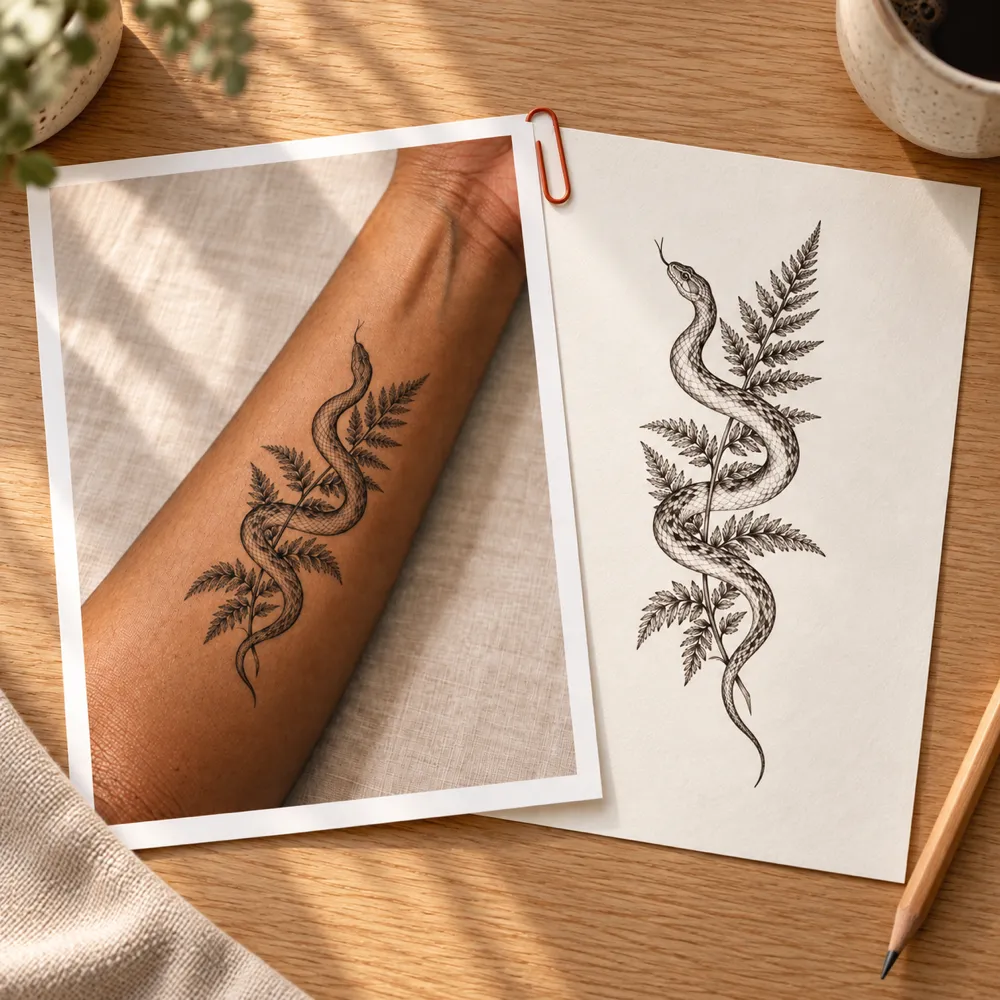
A printed composite and the clean design sheet answer different questions. The tattoo try on image shows where the piece should sit, while the source file shows every line your artist needs to redraw. When you want to test the linework itself, send the design to the stencil tool, or go back to the generator for another variation. Your artist sets the final measurements and makes the transfer stencil, using these references as the starting point for the session.

Printed placement composite beside the original design sheet and a stencil, with an artist pointing
5 SIMPLE STEPS

How the Tattoo Try On Works

1

Pick your design

Pick your design

Upload an image of the artwork, or open My Ink and select a saved tattoo to start your tattoo try on.

Get started
2

Add a body photo

Add a body photo

Use a clear, evenly lit photo of the area you are considering, or pick one of 14 sample body photos.

3

Position the artwork

Position the artwork

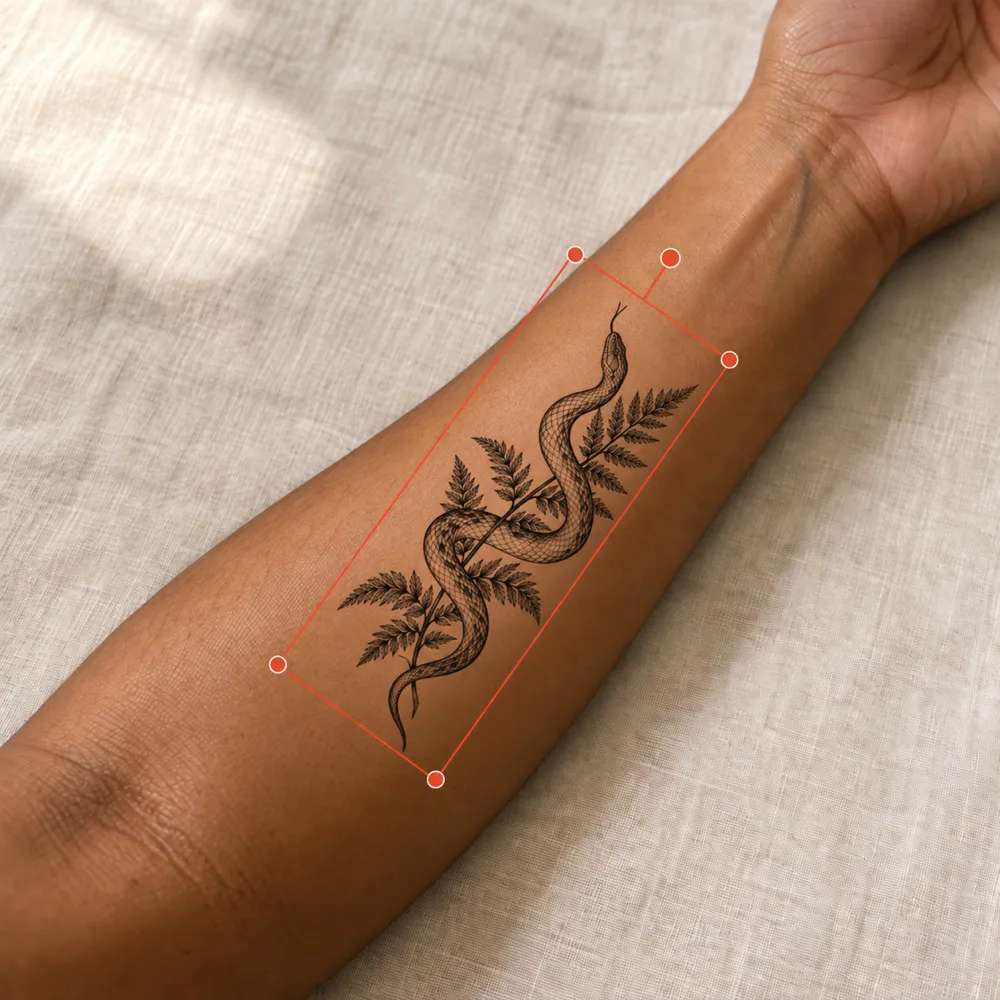
Drag, scale and turn the design in free Classic mode, or request an AI placement render.

4

Check the result

Check the result

Study the size and angle at full view, or compare it with a separate AI-generated placement concept.

5

Save the preview

Save the preview

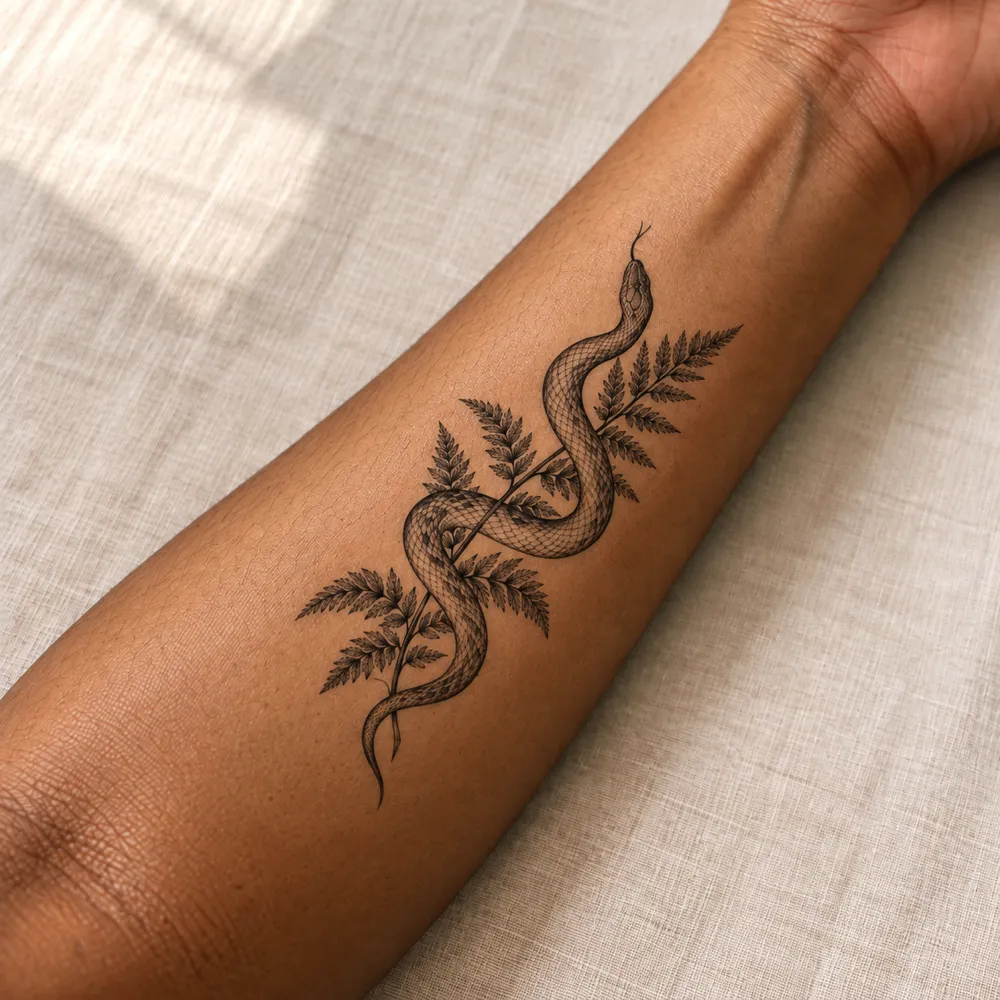
Download the composite for your consultation and bring the source design file along with it.

Preview Result

Why Use This Tattoo Try On?

Free Classic mode

Classic placement runs in your browser and spends no credits, so you can test as many positions as you need without watching a balance.

Clean background removal

The design background is removed on your device before placement, so only the tattoo itself appears on the photo. A progress bar shows while the model loads.

Hands-on controls

Drag the artwork into place, pull it larger or smaller and turn it to follow a limb, then export the finished composite as an image.

14 sample body photos

No suitable photo yet? Pick one of 14 sample body photos, from ribs and spine to ankles and wrists, for a quick first tattoo try on.

Optional AI placement

AI mode creates a separate rendered preview from your design and body references, with the model and credit cost displayed before you create it.

Linked to My Ink

Pull in designs saved from any of the tools, or press Try On in a work’s detail view to send that image here directly.

Placement Studies from Upper Back to Collarbone

These original studies show how a subject changes across the upper back, forearm, ribs, thigh, shoulder and collarbone. Use them as a starting point for your own tattoo try on: load a saved design or upload a new one, add a body image and set its position, scale and angle in Classic mode.

Create your own design

Placement Workflows to Explore

Original Tattoo Design workflow examplePick your design

Upload an image of the artwork, or open My Ink and select a saved tattoo to start your tattoo try on.

Try this workflow

Frequently Asked Questions

What is a virtual tattoo try on?

It is a way to see a design on a body image before anything touches skin. Classic mode clears the artwork background in your browser and lets you place it by hand, while AI mode creates a separate rendered preview from your tattoo and body references.

Does the Classic tattoo try on cost credits?

No. Placing, adjusting and exporting in Classic mode uses no credits. AI mode costs 10 credits per preview, and signed-in users can cover one with their free standard AI generation for the day, shared across all eight tools.

What kind of photo gives the best tattoo try on result?

A sharp, well-lit shot taken straight on, with the whole placement area visible and not cut off at the edges. Clothing or strong shadows over the skin make the position harder to judge.

Can I try on a design I already made here?

Yes. Choose it from My Ink inside the tool, or open the work’s details and press Try On to load it automatically.

How accurate is the tattoo simulator?

It is a visual guide to position and proportion, not a measurement. Lens angle and posture change how a photo looks, so your artist confirms the real dimensions and adapts the design to your body.

Find the Right Spot for Your Next Tattoo

Start a free tattoo try on with your own photo, test a few positions and download the one you want to talk through with your artist.

Try Now